
Scan receipts and screenshots
What you need
- Gradually Premium
- iOS 26 or iPadOS 26, or later
- iPhone 15 Pro or newer, iPad with M1 or newer, or iPad mini with A17 Pro, with Apple Intelligence turned on
Scan an image
- On the Transactions tab, touch and hold the + button.
- Tap Scan Image, then Choose Image, and pick the receipt or screenshot.
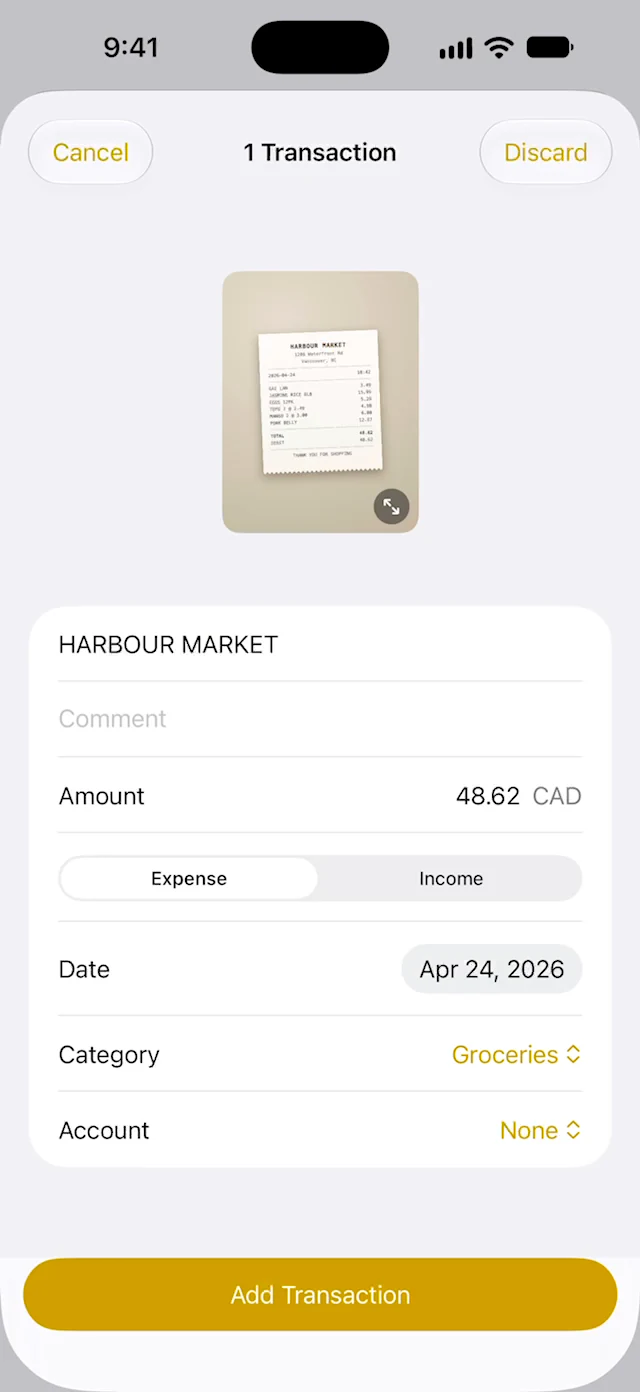
- Check the details, then tap Add Transaction.
Review the details
- A receipt becomes one transaction for its total. A screenshot with several purchases becomes one transaction for each.
- Edit the merchant, amount, date, category or account if anything is wrong.
- If Category says Choose, pick one. Every transaction needs a category.
- Swipe left on a transaction to remove it.
Discard deletes the scan. Cancel keeps it for later: it waits on the Transactions tab, under your balance.
Scan what's on your screen
Make a shortcut that takes a screenshot and sends it to Gradually.
- In the Shortcuts app, tap + to create a shortcut. On iOS 27, then tap Edit.
- Add the Take Screenshot action.
- Add Gradually's Scan Receipt action below it.
- Tap the name at the top, tap Rename, and call it, for example, Scan Screen. Then go back: it saves on its own.
To run it with a button:
- Action button: go to Settings > Action Button, swipe to Shortcut, and choose your shortcut.
- Back Tap: go to Settings > Accessibility > Touch > Back Tap, tap Double Tap, and choose your shortcut.
Common questions
It says “Scanning unavailable”
Check that your device meets the requirements above and that Apple Intelligence is turned on in Settings. If you just turned it on, wait for it to finish downloading, then try again.
It says “No transactions found”
Tap Try Another and pick a clearer image where the total is visible.
The currency is wrong
Gradually uses your base currency unless the image shows a currency code or a symbol like € or £. Add the transaction, then open it and change the Currency.
A transaction says “Already added”
It matches one already in your list, so it is skipped. Tap Keep to add it anyway.
Is the image uploaded?
No. The scan happens on your device, and the image is deleted after you add or discard the scan. To keep a copy, attach the photo to the transaction.
Related guides
Still need help?
Email us from the address you signed up with.